
Seller journey: from account to first sale
Last updated 7 November 2026
You open a shop, publish what you sell, agree the terms of each order with the buyer and get paid in your own Stripe account. You remain the seller — Martiqo gives you the storefront, the buyers and the order workflow, and charges a flat fee per payment.
In 20 seconds: create an account → create your invoice identity (who sells: you or your company) → create a shop with selling enabled → complete Stripe onboarding → add products and make the shop public → receive an unpaid order → set the terms and your delivery commitment → the buyer accepts and pays → you ship and invoice.
Your journey at a glance
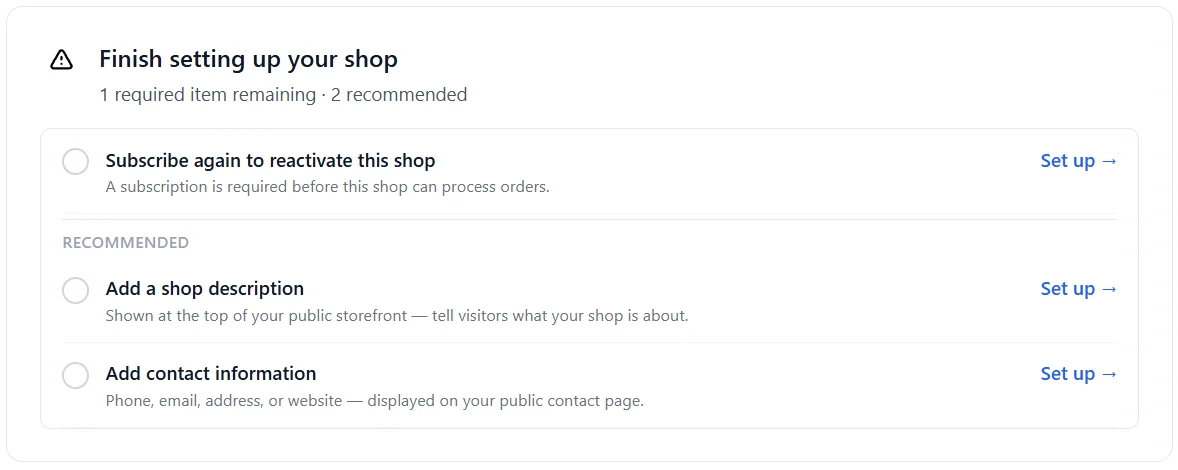
The setup steps are the same ones your shop page lists under Finish setting up your shop: invoice identity, subscription, Stripe Connect onboarding, at least one product, public visibility — followed by the recommended shop description, contact details and a dedicated order-notification email.
Step 1 — Say who is selling: your invoice identity
An invoice identity is the legal person behind a shop: an individual (you, under your own name) or a business (a registered company or trader). It holds the name, address, country, contact details and — for businesses — the registration number and VAT status. It appears on orders and on the invoices your buyers receive, and it determines in which country Stripe verifies you.
- Create it under Manage invoice identities before you create the shop.
- Declare the type accurately: an individual who actually trades as a business must register as a business (see the Terms, section 3).
- If you are VAT-registered, tick VAT registered and enter your VAT number — Martiqo checks EU numbers against VIES and sets up VAT calculation in your Stripe account once onboarding is complete. See VAT on your sales.
- One account can own several shops, each with its own invoice identity — for example a personal shop and a company shop.
Note
Once a selling shop has a verified Stripe account, its invoice identity cannot be switched to a different legal entity. To sell as another entity, create another shop.
Step 2 — Create the shop and enable selling
- Open Manage shops → Add a new shop, give it a name and pick the invoice identity.
- Tick Enable selling for this shop and choose a subscription plan (below). A shop without selling is a buyer-only shop and has no subscription.
- Stripe asks for a payment card. It is saved for the shop's subscription; nothing is charged while a free period applies.
- The shop is created and you land on its shop page with the setup checklist.
Selling can also be switched on later for an existing buyer-only shop (Enable selling on the shop page) — the shop keeps buying, and keeps its orders and reputation. One account can own several shops, each buying and, optionally, selling, each with its own invoice identity, subscription, Stripe account, dashboard and reputation: see Accounts and shops.
Subscription plans
Every selling shop has a yearly subscription whose only variable is how many products the shop can list:
| Plan (as shown when you choose it) | Price per year | Free period |
|---|---|---|
| 1,000 products (€10/year) | €10 | 24 months |
| 5,000 products (€100/year) | €100 | 24 months |
| 20,000 products (€800/year) | €800 | 24 months |
| 100,000 products (€5000/year) | €5,000 | — |
| 500,000 products (€10000/year) | €10,000 | — |
| 1,000,000 products (€15000/year) | €15,000 | — |
Tip
Founding Seller Program. Early Martiqo sellers currently receive an extended free period before yearly billing begins. Currently: 24 months free on the plans marked above, for the first shop on an account. The yearly price is charged to the saved card only when the free period ends; you can cancel before that. The shop page shows your own free period and first billing date.
Free periods and other programs currently open are listed on Active programs and campaigns.
Deleted products do not count towards the plan. The subscription renews yearly; if a renewal payment fails and cannot be collected, the shop stops processing orders until it is paid.
Step 3 — Complete Stripe onboarding
Payments on Martiqo go into your own Stripe account, created for the shop through Stripe Connect. On the shop page, under Payments, start the onboarding: Stripe verifies your identity (or your company's) and your bank account, in the country of your invoice identity. Until Stripe reports the onboarding as complete, your shop cannot set terms on orders, so buyers cannot pay you.
- Stripe decides which countries and seller types it supports; the shop page tells you if your invoice-identity country is not supported.
- Payouts from your Stripe balance to your bank follow Stripe's schedule for your country; Martiqo does not hold or forward the money.
- The Stripe account also carries your VAT setup and, if you choose it, Stripe-issued invoices to your buyers.
Step 4 — Add your products, food, services or software
Under Products on the shop page you can:
- Add listings one by one — name, description, price before VAT, pictures, category (product, food, service, software), stock and details such as a link to the full product page on your own website.
- Group variants — several listings (sizes, colours) show as one product; the buyer picks the variant on Martiqo.
- Import in bulk from a CSV file with images, using Product Tools.
- Import from a dropshipping supplier you have connected under Dropshipping; those orders are placed with the supplier after the buyer has paid.
- Translate listing names and descriptions to English with AI, so buyers find them whatever language you wrote them in.
Write prices without VAT: when VAT applies, it is added for the buyer at payment time (see VAT on your sales).
Step 5 — Make the shop public
A new shop is private. Turn on Storefront → Make this shop public when it is ready; it then appears in
search and at its own address martiqo.com/shop/your-shop-name. Buyers can order a listing when the shop is public,
the shop can take payments (active subscription and completed Stripe onboarding) and the listing is Active.
Out of stock listings stay visible but cannot be ordered — buyers can ask to be notified when they are back.
Disabled listings are hidden.
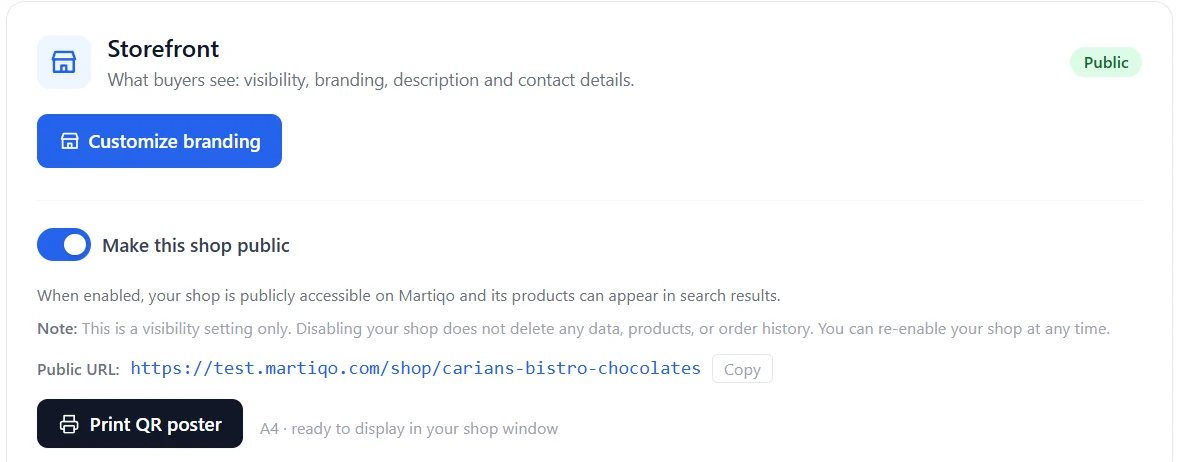
The same three conditions apply to the Buy on Martiqo button you can put on your own website: it hides itself while a product cannot be ordered.
Step 6 — An order arrives: nothing has been paid yet
When a buyer places an order you are notified by email and the order appears in Orders with the status Pending seller review. The buyer has given a delivery address and phone number and may have added a note. No payment has been made. You have 7 days to respond before the order expires.
Step 7 — Set the terms and your delivery commitment
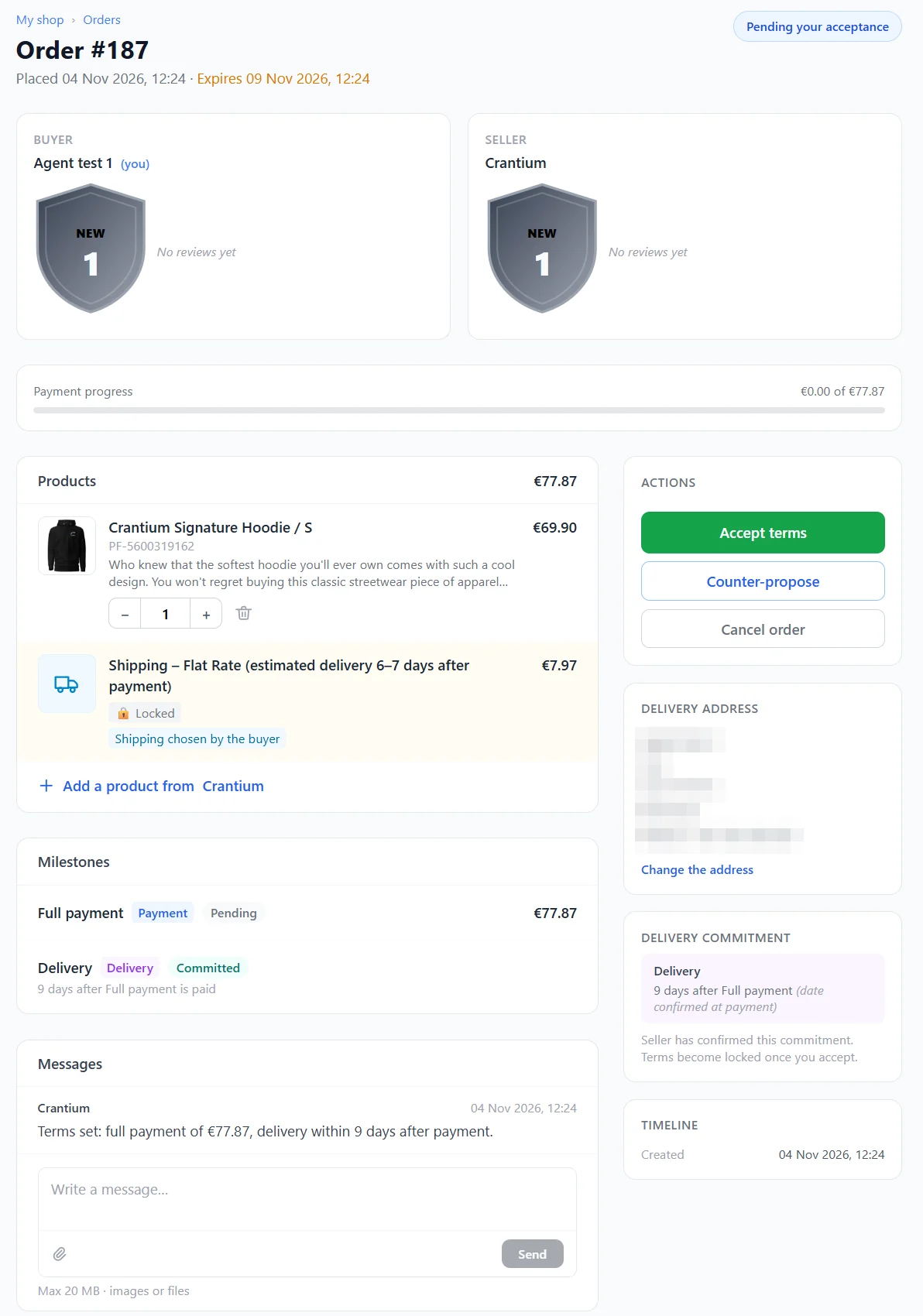
On the order page you set the terms the buyer will see:
- Prices — confirm or adjust the price of each line; you can add lines such as shipping or packaging.
- Payment schedule — normally one full payment; for larger or custom orders you can ask for an advance and a final payment. Each payment is a separate card payment by the buyer.
- Delivery commitment — a delivery date, or a number of days after the payment. You tick that you can meet it; the order page shows the buyer that this commitment is yours, not Martiqo's.
The buyer can accept, counter-propose (you then accept or adjust again) or cancel. Each side has a response time limit; an order nobody answers expires with nothing paid. Before the first payment either side can cancel free of charge. You see your estimated net payout — after the Martiqo fee and Stripe's estimated processing fee — while you set the terms, so you can price accordingly.
Note
Orders for products imported from a dropshipping supplier can have their terms filled in automatically from the supplier's quote, when you have switched that on for the supplier connection.
Step 8 — The buyer pays through Stripe
Once the terms are agreed, the order waits for the first payment (3 days for each requested payment). The buyer pays by card on a Stripe Checkout page that runs on your Stripe account. The money lands in your Stripe balance, minus Martiqo's flat fee and Stripe's processing fee; Stripe pays it out to your bank on its schedule. The order moves to In progress and you can start fulfilling it. For multi-payment orders you request the next payment from the order page when it is due.
What it costs you
Martiqo charges a flat platform fee per payment — a fixed amount decided by the size of that payment, never a percentage:
| Payment amount | Platform fee | Example |
|---|---|---|
| Up to €100 (inclusive) | €1.00 | a €50 payment → €1.00 |
| Above €100, up to €500 (inclusive) | €5.00 | a €300 payment → €5.00 |
| Above €500 | €10.00 | a €1,000 payment → €10.00 |
- Per payment, including shipping lines. A €600 order paid at once costs €10.00; paid as €300 + €300 it costs €5.00 + €5.00. The amounts are compared in euro; payments in other currencies are converted at the day's rate.
- Deducted from the payment as a Stripe application fee — you never receive an invoice for it to pay separately, and it is the same for individuals and businesses.
- Stripe's processing fee is charged by Stripe on your account and depends on the card and country; the shop page shows a worst-case estimate of ~5%.
- Optional Stripe features at cost: VAT calculation (0.5% of orders where VAT is calculated) and Stripe-issued invoices (0.4%, at most €2.00 per invoice). Martiqo collects them with the platform fee and passes them to Stripe without margin.
- The yearly subscription of the plan you chose (above).
Percentage-wise, the flat fee is 2% of a €50 payment, 1.67% of €300 and 1% of €1,000 — a comparison aid only; the fee itself is the fixed amount. Compare with other marketplaces.
VAT and invoices to your buyers
You are the merchant, so the VAT on your sales and the invoice to the buyer are yours. Martiqo helps with both: if you are VAT-registered, Stripe calculates the VAT for each buyer and adds it to the total before payment; and for each shop you choose whether you issue invoices yourself (default, no extra cost) or let Stripe issue them in your name after every payment. Both are set under Invoicing & VAT on the shop page.
- VAT on your sales — registrations, EU rules, OSS, VAT categories, costs.
- Issuing invoices yourself — where to find the buyer's data and what to include.
- Invoices issued by Stripe — how to turn it on and what it costs.
An accounting export of your orders and payments for a period is available for your accountant.
After the sale
- Ship and register the shipment on the order page, with the tracking number when you have one. The delivery window starts; the buyer confirms receipt, or the order completes by itself after 2× your promised delivery time.
- Messages — the order page has a message thread with the buyer; use it for questions, delays or changes.
- Problems — while an order is in progress or shipped either side can open a dispute; it is a time-limited message thread whose outcome both sides record. If you cancel after a payment, you return the money to the buyer yourself (for example a refund in Stripe) and mark it on the order; the buyer confirms it arrived.
- Returns and warranty — the rights your buyers have depend on your seller type and country; they are owed by you, not by Martiqo.
- Seller dashboard — orders, revenue, listing performance, visitors by country and the results of your website Buy button.
Common questions
Do I need a company? No. Individuals can sell under their own name; whether your activity needs a registration or VAT number is a matter of your country's law. Stripe verifies individuals and businesses alike.
Am I paid when someone adds my product to the cart? No. You are paid when the buyer pays an agreed order — after you set the terms and the buyer accepted them.
Can I sell in any country? You can sell to buyers anywhere you are willing to deliver. To receive payments, your invoice-identity country must be supported by Stripe Connect; the shop page tells you if it is not.
Can I sell from my own website too? Yes — keep your product pages and add the Buy on Martiqo button; the order and payment then run on Martiqo.
Can I have several shops? Yes, each with its own invoice identity, subscription and Stripe account.
What is the Agent Program? A separate program for people who bring sellers to Martiqo; see Active programs and campaigns and its own page. It does not change anything in this guide.
Next steps
- Create your invoice identity, then add your shop (sign in first).
- Read How Martiqo works and the buyer journey to see what your buyers see.
- Before your first paid order, read VAT on your sales.